Pet Dog Registration

Pet Dog Registration - Karamsad Anand Municipal Corporation

Created on: 24th January, 2026

By: Karamsad Anand Municipal Corporation

Email: amc-and@gujarat.gov.in

User Registration

Registration Steps:


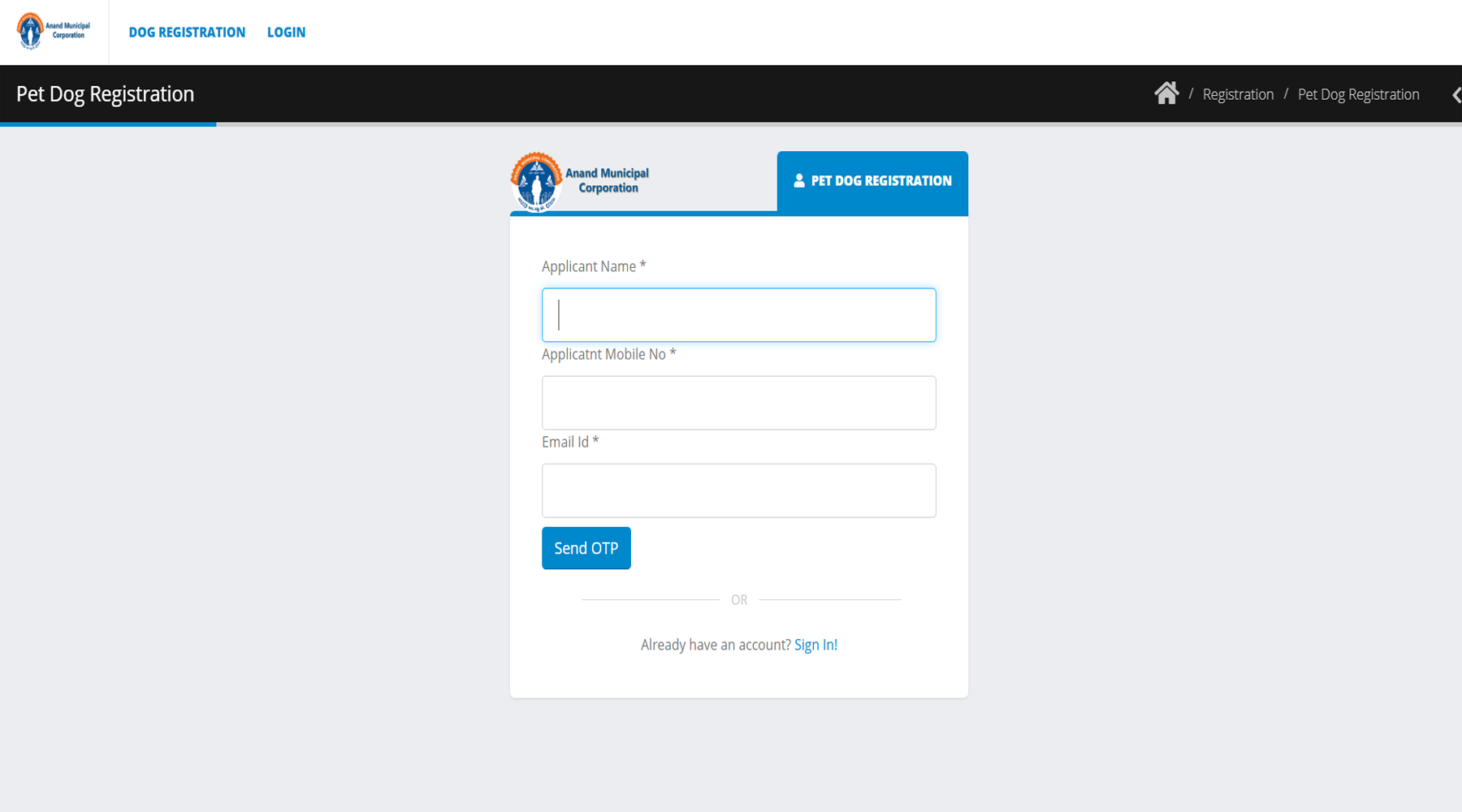
Step 1 : Enter your name, mobile number, and email ID in the registration form.

This is an image

Step 2 : An OTP is sent to the entered email ID.

Step 3 : Enter the OTP to complete registration.

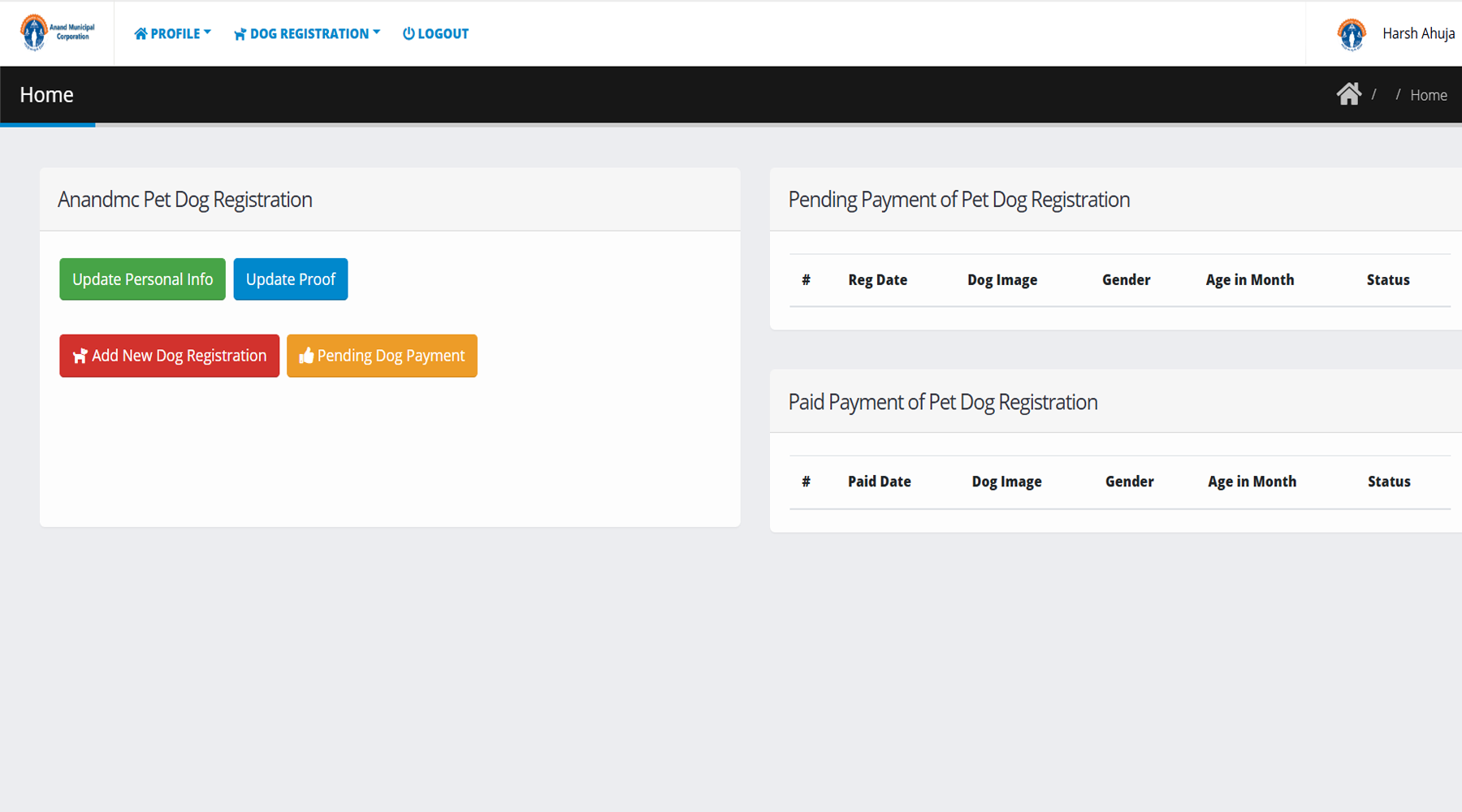
Step 4 : After OTP verification, the user is redirected to the dashboard (home page).

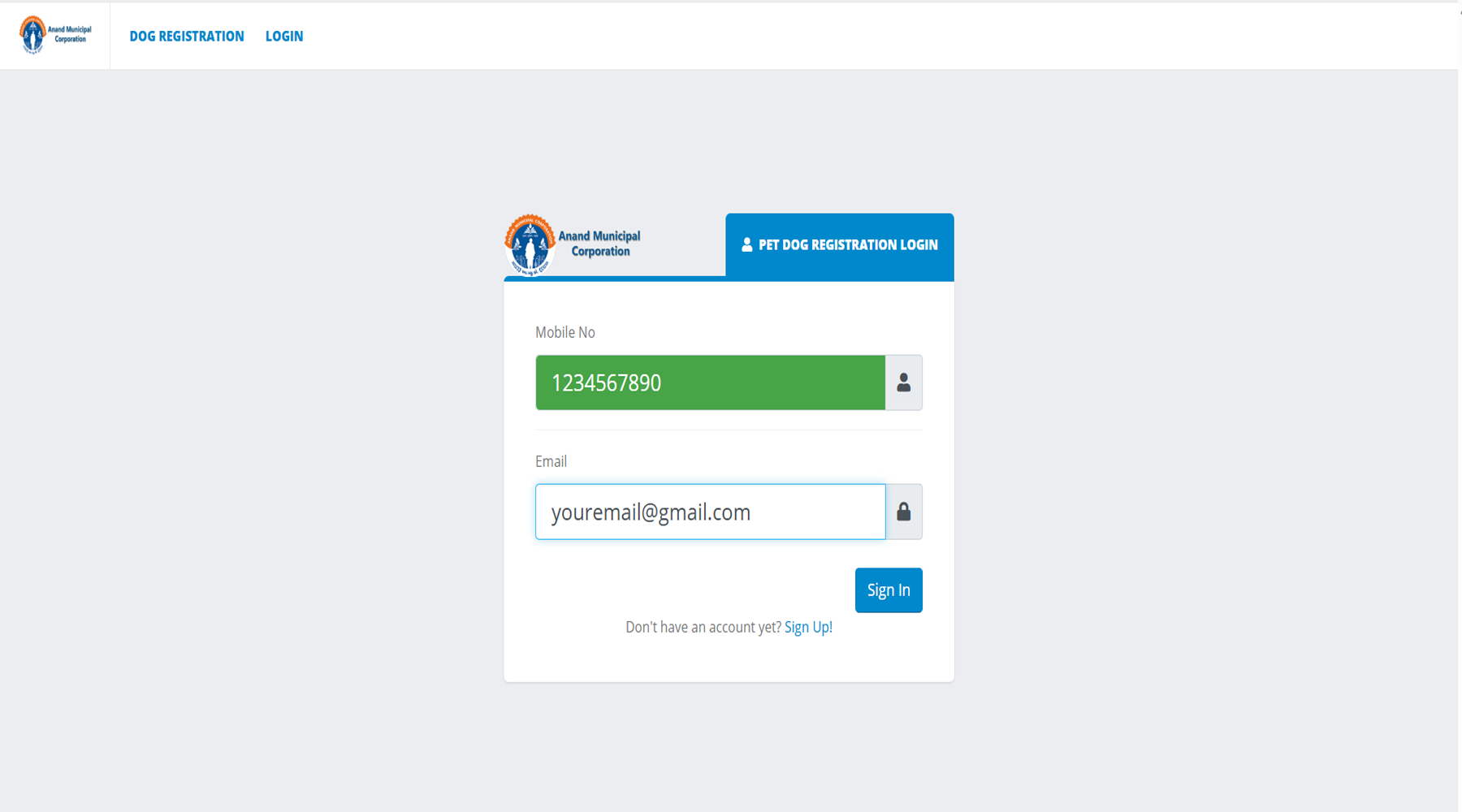
Step 5 : Next time, the user logs in using mobile number and email ID.

This is an image

Step 6 : An OTP is sent again to the registered email ID.

Step 7 : After entering the OTP, the user is logged in and taken to the dashboard.

This is an image

Update Personal Info

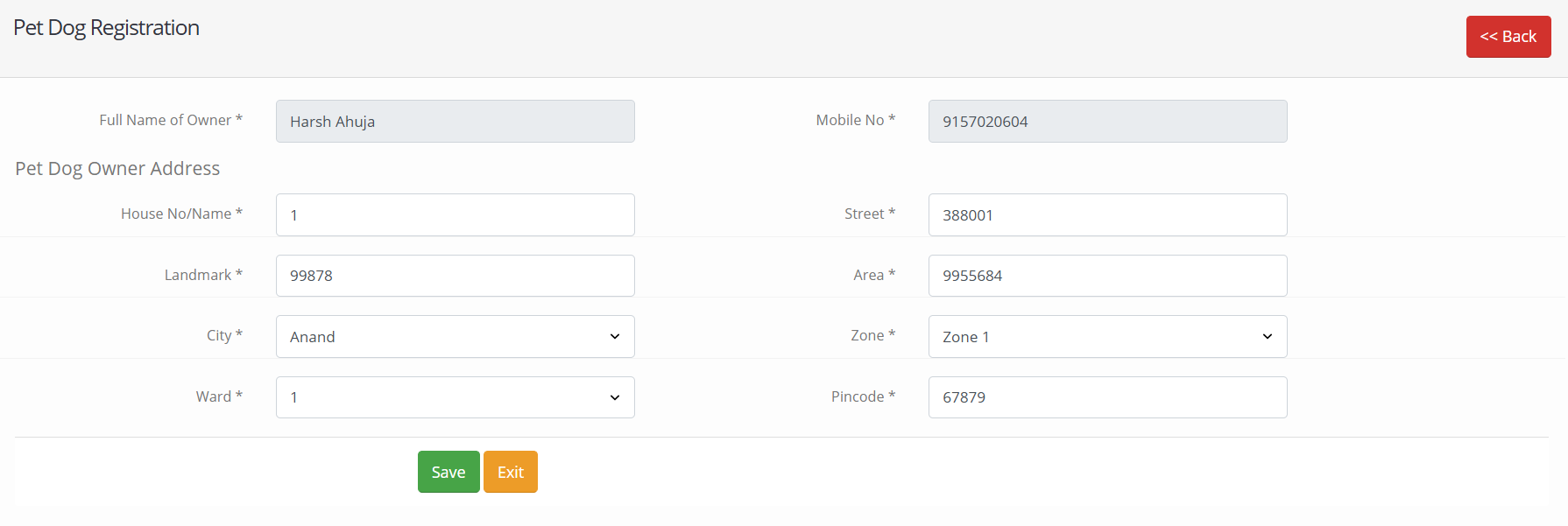
This feature allows users to update selected personal details while keeping the name and mobile number fixed. Only permitted fields can be modified and saved securely in the system.


This is an image

Pet Dog Owner's Address:

1. House No. / Name: Specifies the house number or house name of the user.

2. Street: Indicates the street or road where the residence is located.

3. Landmark:Helps identify the location using a nearby well-known place.

4. Area : Defines the locality or area of residence.

5. City : Represents the city in which the user resides.

6. Zone: Specifies the administrative zone of the city.

7. Ward: Indicates the ward number under the local authority.

8. Pincode:Captures the postal code for accurate address identification.


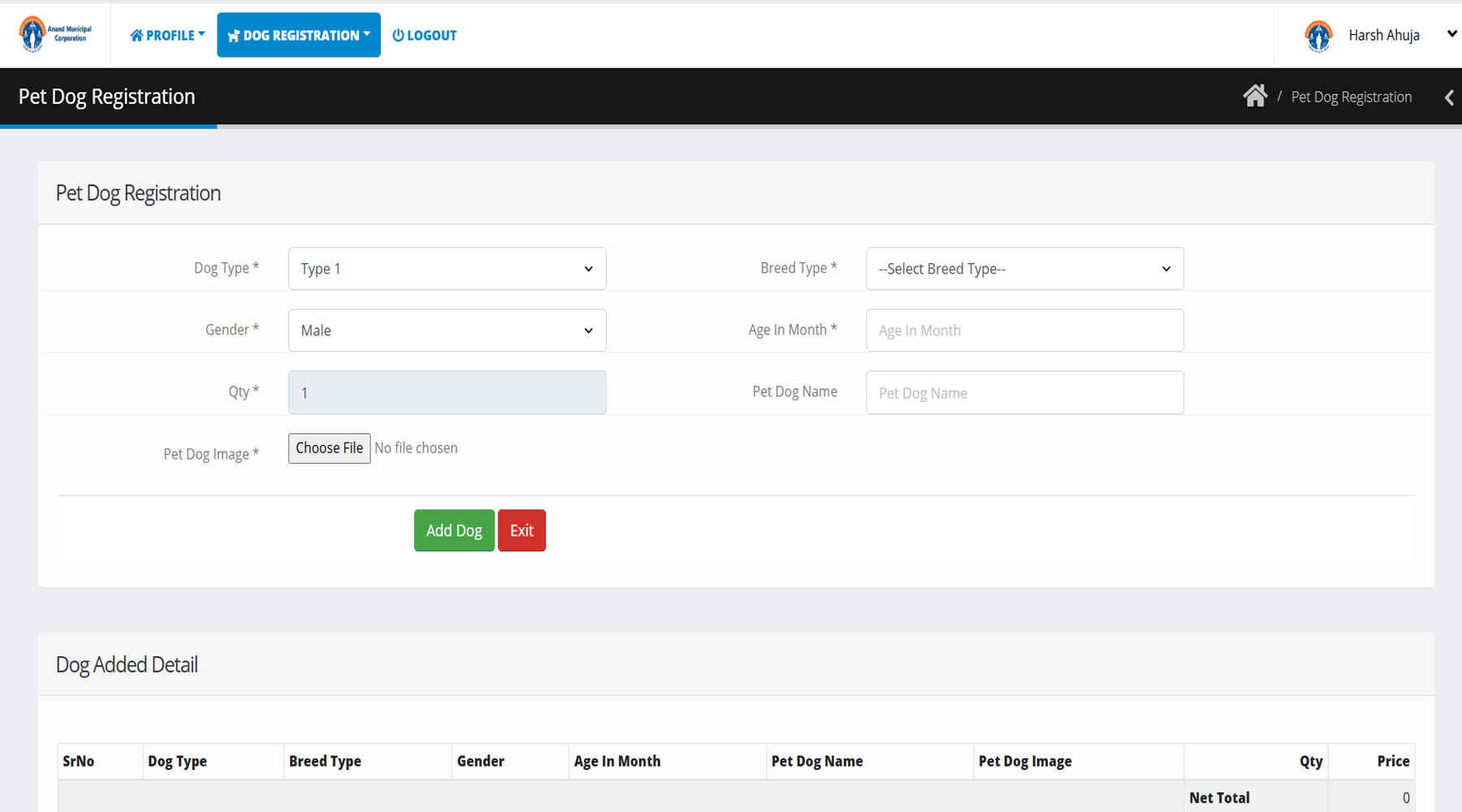
Pet Dog Registration

This section captures essential information about the dog, including type, breed, gender, age, and name. It also allows uploading a dog image for proper identification and record maintenance.


This is an image

Pet Dog Registration:

1. Dog Type:Choose Type 1 for Dog Type.

2. Breed Type:Pick the Breed Type from the dropdown.

3. Gender:Select the Gender of the dog (Male or Female).

4. Age in Month :Enter the dog’s Age in Months and Quantity.

5. Pet Dog Name :Enter the Pet Dog’s Name.

6. Pet Dog Image:Upload a recent image of the dog.


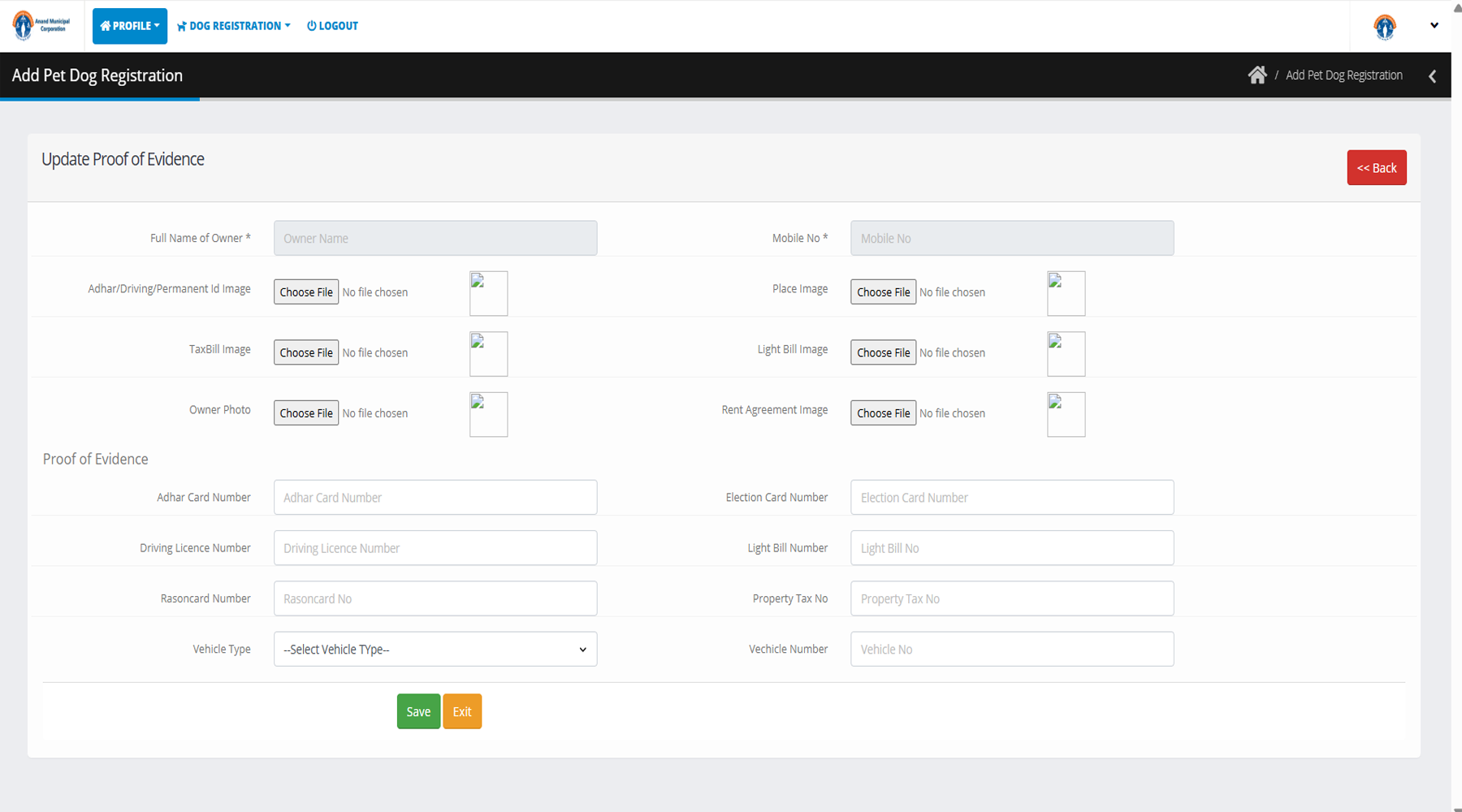
Update Proof of Evidence

This section collects official identification details such as Aadhaar number, license number, or other valid documents. It also allows uploading the respective documents for verification and record purposes.


This is an image

Identity Proofs :

1: Full Name of Owner : Records the complete name of the dog owner.

2. Mobile No.: Captures the owner’s contact number for communication.

3. Aadhar/Driving/Permanent Id Image: Allows upload of a valid government-issued identity document.

4. Place Image: Uploads an image showing the place of residence.

5. TaxBill Image: Stores the property tax bill image as address proof.

6. Light Bill Image: Uploads the electricity bill for residence verification.

7. Owner Photo Captures the photograph of the owner for identification.

8. Rent Agreement Image: Uploads the rent agreement as supporting address proof.


Identity Details :

Aadhar Card Number: Records the Aadhaar card number of the owner.

Election Card Number Captures the voter ID number of the owner.

Driving Licence Number Stores the driving licence number for identification.

Light Bill Number Records the electricity bill reference number.

Rasoncard Number Captures the ration card number of the owner.

Property Tax Number Stores the property tax reference number.

Vehicle Type Allows selection of the type of vehicle, if applicable.

Vehicle Number Records the vehicle registration number.


Pending dog payment

This section allows a user to register by providing basic details such as name, mobile number, and email address. These details are used for user identification and future communication within the system.


After downloading file from codecanoyn just extract in your computer and you will get three folders:

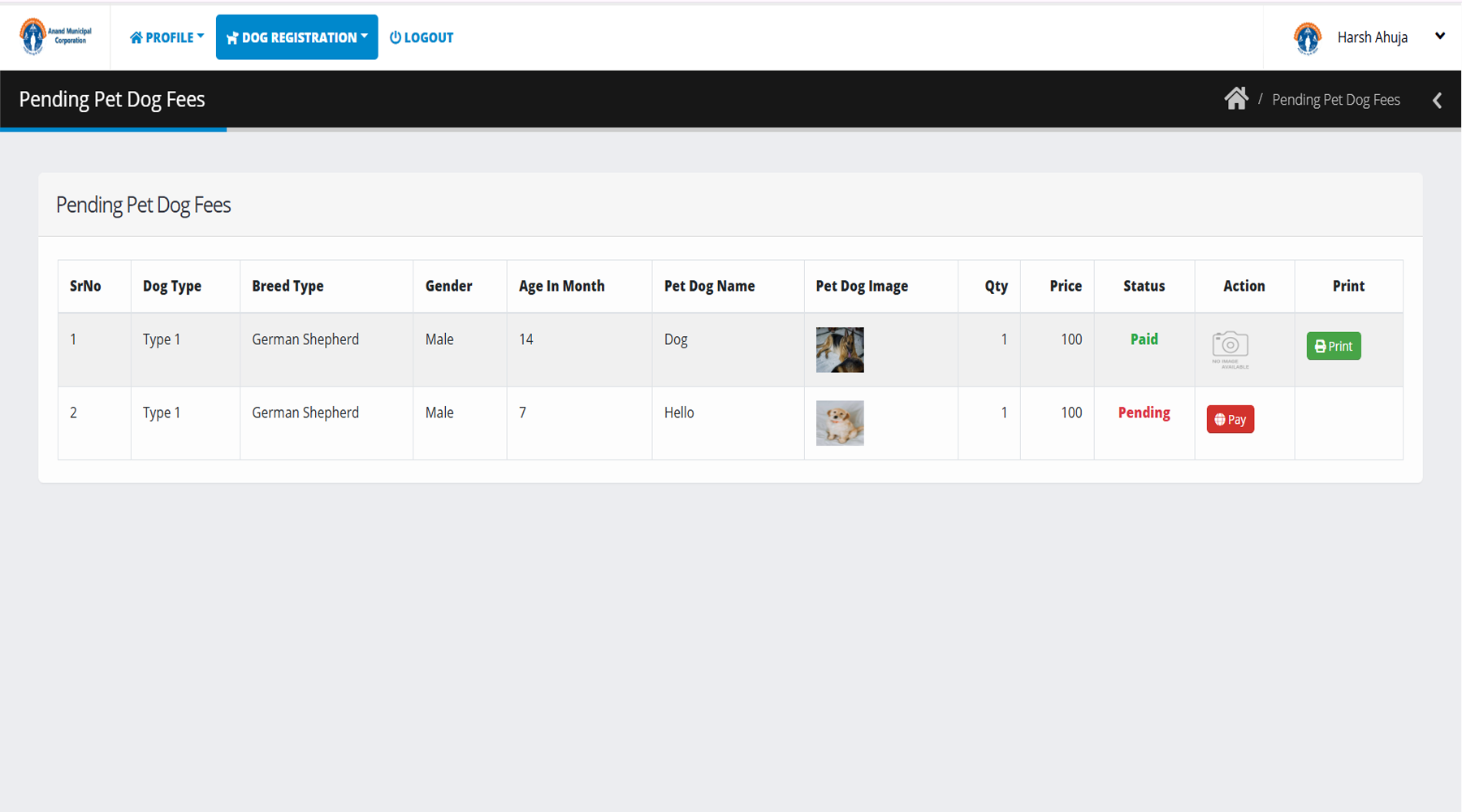
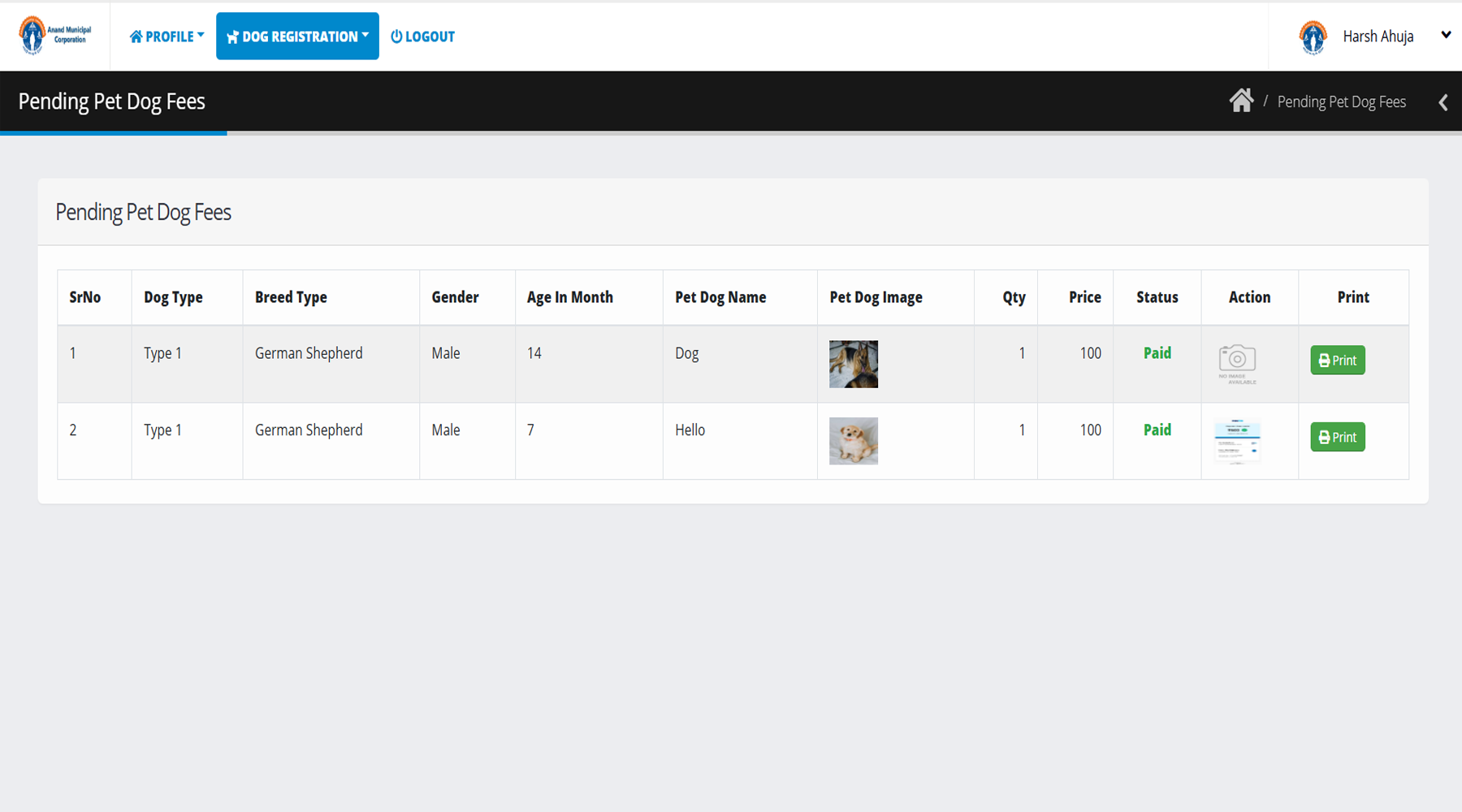
Step 1 : Open the Pending Dog Payment page.

Step 2 : Find the entries showing Pending in the Status column.

Step 3 : Click the Pay button in the Action column.

This is an image

Step 4 : The Add Dog Payment page opens.

Step 5 : Check the user details and dog details shown on the page.

Step 6 : Check the payment rate displayed.

Step 7 : Select the payment method.

Step 8 : Scan the QR code and complete the payment.

Step 9 : Upload the payment screenshot.

Step 10 : Enter the payment date.

Step 11 : Click Save to submit the payment.

This is an image

Developer Support

We are always happy to hear from you. Please feel free to contact us for any kind of customization, support, query and suggestion. We will respond as soon as possible. We reply all our emails within 36 hours. Please email us from our profile so we can verify you as our client and help you to solve any issue.
Our profile: Karamsad Anand Municipal Corporation
Thank you
Contact Us